
Library and Zotero sync
One personal reference library across your projects: adding, organising, verifying, de-duplicating and exporting references, and two-way Zotero sync.
One library for all projects
Library is your personal reference manager. There is one library per person, shared across all your projects, and you decide which items each project sees by linking them. Members of a linked project can see and cite those items; they cannot change your copy.
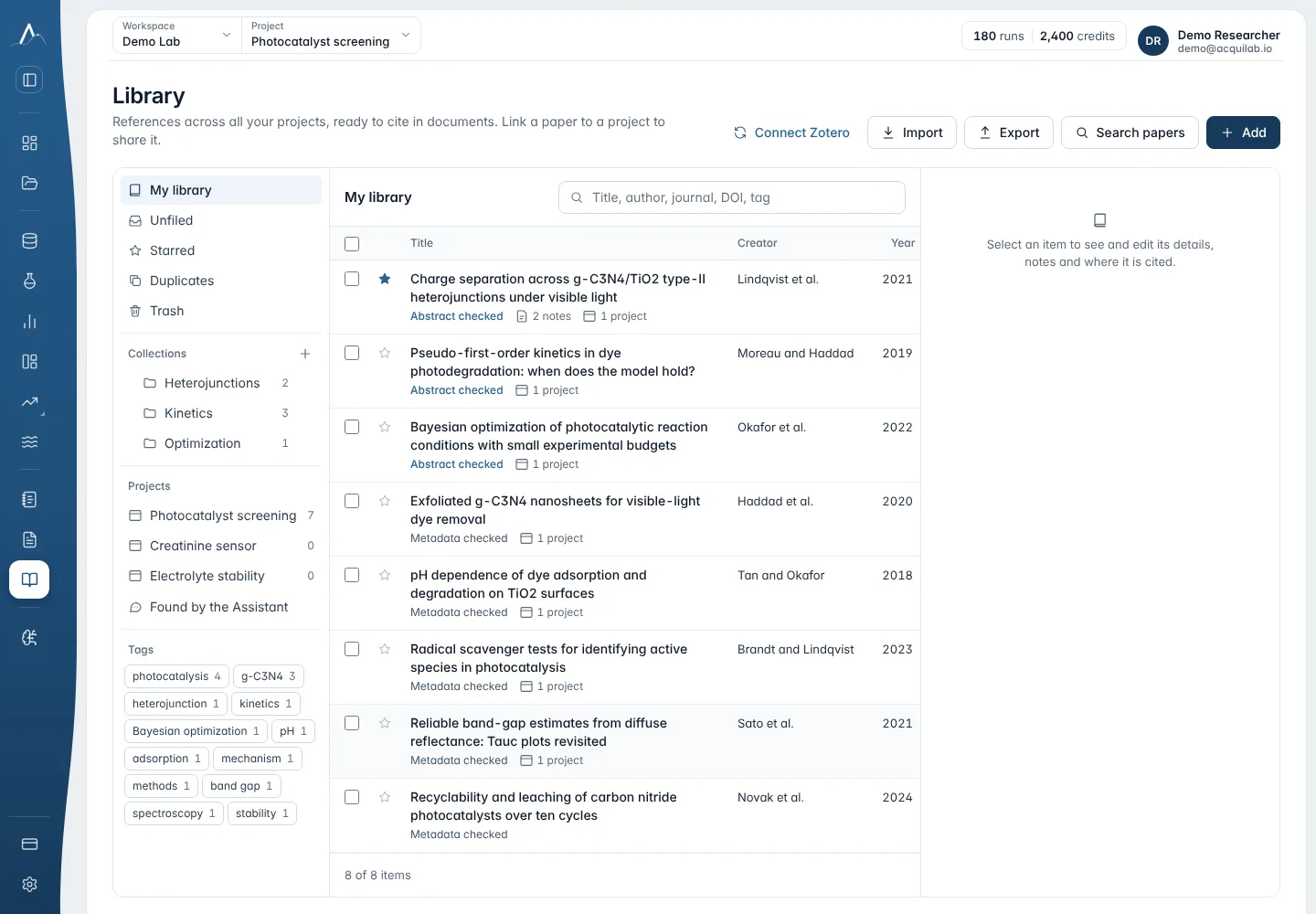
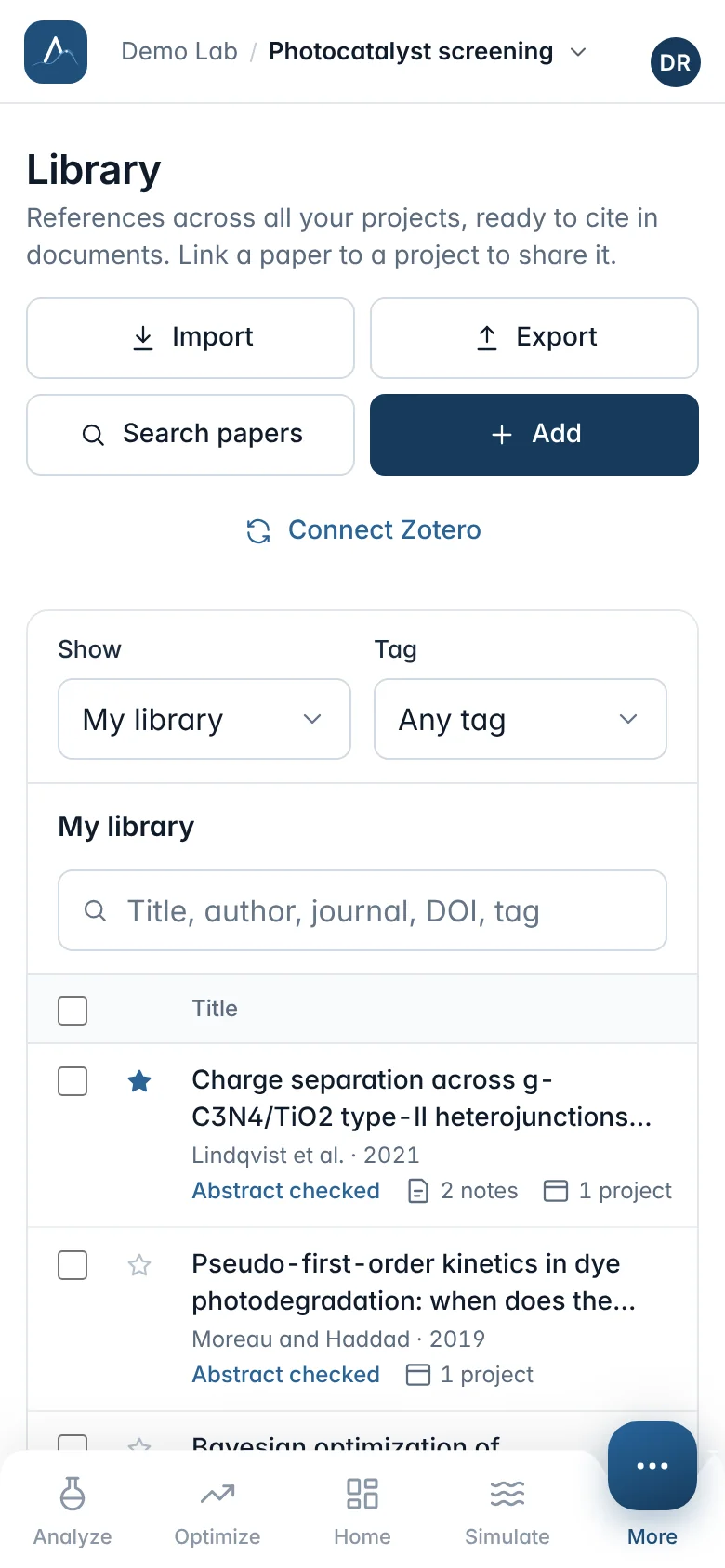
The page has three panes: the list of views, collections and projects on the left, the items in the middle, and the details of the open item on the right.
| View | Shows |
|---|---|
| My library | Every item you keep. |
| Unfiled | Items in no collection. |
| Starred | The papers you return to often. |
| Duplicates | Items with the same DOI, or the same title and year, ready to merge. |
| Trash | Deleted items, until you restore them or delete them permanently. |
| Found by the Assistant | Papers the Assistant found in a project; Save to library keeps one. |
| Collections | Your folders, with subcollections. An item can be in several collections. |
| Projects | The items linked to each project. |
Adding references
Add by identifier
Paste DOIs, PMIDs, arXiv IDs or links, several at once. AcquiLAB fills in the details from Crossref, Europe PMC or arXiv. You can also enter an item by hand; it is saved as not verified.
Search papers
Searches OpenAlex and Crossref, optionally between two years. Add the papers you want in one click.
Import a file
BibTeX (.bib), RIS (.ris) or CSL-JSON (.json) up to 5 MB, from another reference manager, Google Scholar or a LaTeX project. The format is detected automatically, or choose it. Items already in your library are not imported again; they are added to the chosen collection or project.
From the Assistant
Papers the Assistant found while answering appear under Found by the Assistant. Save the ones you want to keep.
Identifier lookups are limited to 60 a minute and searches to 10 a minute per person.
Collections, tags and projects
- Select several items for bulk actions: Add to collection…, Link to project…, add or remove tags.
- Star an item, and mark it unread, reading or read.
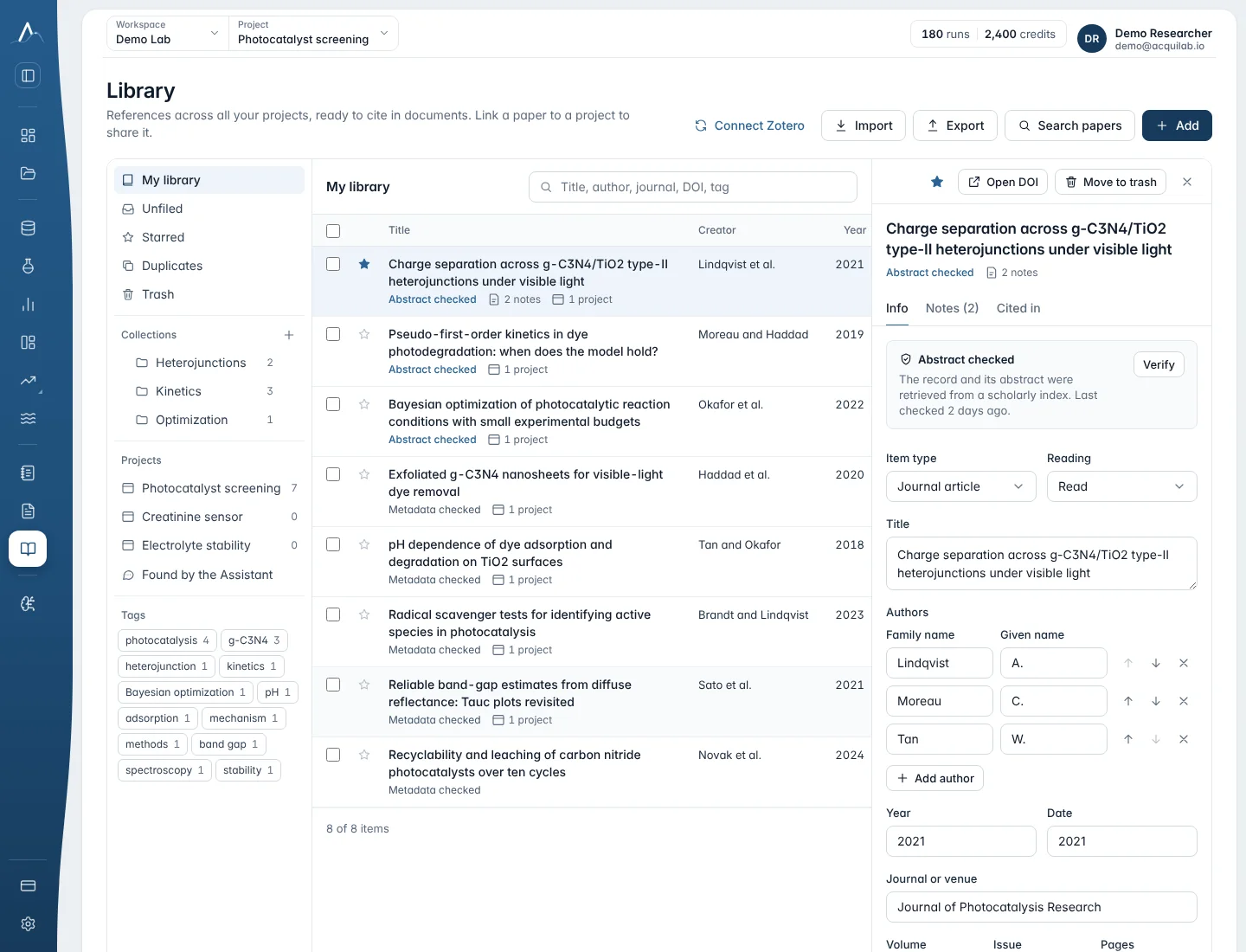
- In the details pane, edit the metadata (item type, title, authors, journal, year, volume, issue, pages, identifiers, abstract), the citation key and the tags, and write notes in Markdown.
- Cited in lists the documents that cite the item. Citing an item from your library in a project's document links it to that project automatically.
Verification and retractions
Every item shows how well its record was checked. Verify looks it up by DOI, PMID or arXiv id and fills in missing details. Changing an identifier marks the item not verified until you verify it again.
| Shown as | Meaning |
|---|---|
| Not verified | Typed in, imported or synced without checking. |
| Metadata checked | Title, authors and journal were matched against a scholarly index (Crossref, Europe PMC or arXiv). |
| Abstract checked | The record and its abstract were retrieved from a scholarly index. |
Retraction flags appear on the item, in the citation picker and in the document check: Retracted and Withdrawn (errors), Corrected and Possible retraction (warnings).
Duplicates and trash
- Open Duplicates. Items with the same DOI, or the same title and year, are grouped.
- Choose the record to keep and press Merge into the selected record.
- The merge fills empty fields from the others, joins their tags, collections, projects and notes, and moves the others to the trash. Their citation keys keep working in documents.
Deleting moves items to Trash, where you can restore them. Delete permanently or Empty trash removes them for good.
Export
Export references writes BibTeX, RIS or CSL-JSON for the whole library, a collection, a project or the selected items, for LaTeX, Word plug-ins and other reference managers. Documents export their own reference list; see Export in Notebook and Documents.
Two-way Zotero sync
Connect your Zotero personal library (My Library) and keep both in sync. Changes made in either place reach the other when you press Sync now.
- In the Library, choose Connect Zotero. Open zotero.org/settings/keys/new (sign in to Zotero if asked).
- Under Personal Library, tick Allow library access and Allow write access. Without write access the sync is read only: changes made in AcquiLAB are not sent to Zotero. Notes access is optional.
- Save the key, copy it and paste it into Zotero API key, then Connect.
- Press Sync now. A large library syncs in rounds; the dialog shows what was received, sent and removed on each side, and sync again to continue when more is waiting.
| Topic | Behaviour |
|---|---|
| What syncs | Items and their metadata, tags, collections and notes. Attachments (PDFs) and annotations are never pulled, sent or deleted. |
| Edits on both sides | Merged field by field: a field changed only in Zotero is updated here, a field changed only here is sent (other Zotero fields are left untouched). If both sides changed the same field, the AcquiLAB value wins and the conflict is listed. Tags and collection membership merge as sets. |
| Moved to the trash here | Moved to Zotero's trash; restoring it here restores it in Zotero. |
| Moved to the trash in Zotero | Moved to the trash here, still linked; restoring it here restores it in Zotero. |
| Deleted in Zotero | Moved to the trash here and unlinked; restoring it later creates it again in Zotero. |
| Deleted permanently here | Deleted in Zotero as well. |
| Your key | Stored encrypted and used only to sync. It is never shown again. |
| Disconnect | Items stay in your library. Reconnecting the same Zotero account later resumes the sync. |
If Zotero stops accepting the key, the dialog says so: disconnect and connect a new key. Zotero group libraries are not synced. PDF attachments with an in-browser reader and highlights are planned.