
Notebook and Documents
The project's running record, documents built from it, citations of papers and results, the number check and exports to Word and LaTeX.
Notebook
Notebook is the project's running record. It fills itself: analysis runs, each optimization result with its value and settings, recommendations, simulation runs and loops, saved figures and graphs, data uploads, documents, and your own questions to the Assistant.
- Write a note on its own (the composer at the top) or next to an entry (Note). You can edit or delete your own notes; project managers can delete any.
- Pin entries for the whole project. Filter by All, Pinned, Analyses, Optimization, Simulations, Figures, Data or Notes, search, or pick a day.
- The side panel shows what is pinned, this week's counts and latest result with Make the weekly update, and a small calendar. The calendar view shows a month with counts per day.
- Three months load at first; Load earlier adds three more.
- Tick entries, then Add to document or Create document from these.
Documents
Documents holds the project's reports, manuscripts, literature notes and slides. They are written in Markdown with LaTeX maths ($…$ and $$…$$), save automatically, and refuse to overwrite a colleague's newer edit.
Start from the Notebook
New → From the Notebook builds a draft from a template (Weekly update, Methods & results, Full record, Group-meeting slides) and a choice of entries (This week, Last 30 days, Pinned only, Ticked in Notebook, or chosen dates). Draft the summary with the Assistant opens the Assistant with a prepared question for the same period.
Live blocks
Results, campaigns, notes and figures placed from the Notebook appear as cards with a link to their source. When the source changes, the card says so (for example Newer result available) and offers Update; Update all appears when several changed. Nothing changes until you press it.
The editor has three views: Write, Side by side and Preview. The toolbar inserts entries From notebook, opens Cite, places the Reference list, sets the citation style and runs the Check.
Citing papers
- Type
@in the text, or press Cite. The picker's Papers tab searches your library and the project's papers by title, author, year or key. - Choose a paper. AcquiLAB inserts its key in Pandoc form and, if it came from your library, links the item to the project.
- Choose the citation style in the toolbar: ACS (default), RSC, Nature, APA 7, IEEE or Vancouver. ACS, RSC and Nature number citations as superscripts.
- Press Reference list to place the bibliography at the cursor; otherwise it goes at the end of the document.
| You write | Meaning |
|---|---|
[@curie1898] | One paper |
[@a; @b] | Several papers in one citation |
[@a, p. 4] | A paper with a locator |
[-@a] | Author left out (in APA, the year only) |
The style and the place of the reference list are stored in the document as hidden comments, so they travel with it. A key with no matching item shows as [?key] and is reported by the check.
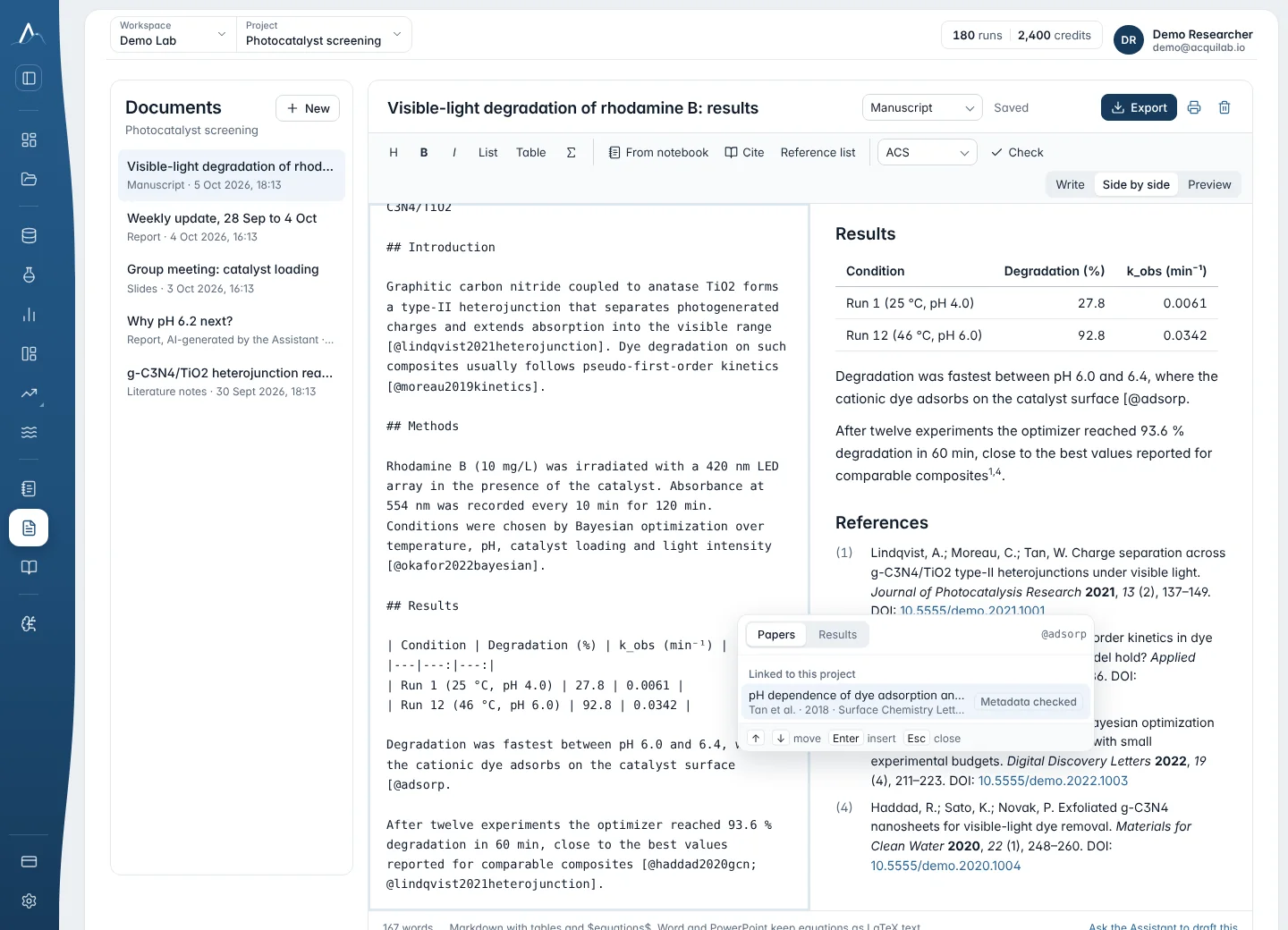
Citing results
The picker's Results tab lists the project's analyses, figures, campaigns, simulations and datasets. Choose one, then how to insert it:
| Insert as | What you get |
|---|---|
| Link | The name, linked to its source, for example “Analysis #12 (fluorescence, 9.txt)”. |
| Value | One measurement with its unit, such as λmax = 520 nm, pinned to the revision you cited. |
| Embed | A live block at the end of the document, with Update when the source changes. |
A cited value never changes by itself: if the source has a newer result, the check tells you and you decide whether to update.
Check numbers and citations
Check reads the whole document and checks that every citation resolves and every value still matches its source. Each finding links to its place in the text; values that changed can be updated from the panel.
| Finding | Level | Meaning |
|---|---|---|
| Citation missing | Error | A cited key is not in the library or the project. |
| Retracted or withdrawn paper | Error | A cited paper is flagged as retracted or withdrawn. |
| Corrected paper, possible retraction | Warning | A cited paper has a correction or may be retracted. |
| Unverified citation | Warning | The cited item was never verified by DOI, PMID or arXiv id. |
| Source missing | Error | A cited result, figure or dataset was deleted or can no longer be read. |
| Value changed | Error | The number in the text no longer matches the cited revision of its source (units included). |
| Newer revision | Warning or note | The source has a newer result than the one cited. |
Export
| Format | What you get |
|---|---|
| Word (.docx) | Formatted citations and reference list; figures embedded at 300 dpi. |
| Print, then save as PDF; figures stay vector. | |
| LaTeX | A .zip with the .tex (citations as \cite{}), references.bib and each figure as vector PDF; a single .tex when there is nothing else. |
| PowerPoint (.pptx) | A slide per heading or ---; a figure fills its slide. |
| Excel (.xlsx) | A sheet per table. |
| Markdown (.md) | The text as written. |
| Figures (.zip) | Every figure in the document as SVG. |
Tick Add data & methods appendix in the export menu to add the sources, versions and analyzers of the results the document cites: the reproducibility statement journals ask for. Every export is listed under Exported before with its format, time and size.