
Assistant, MCP connector and connected agents
The project-aware Assistant, connecting your own AI agent through the MCP connector, the permissions and run limits you give it, and the tools it can call.
The Assistant
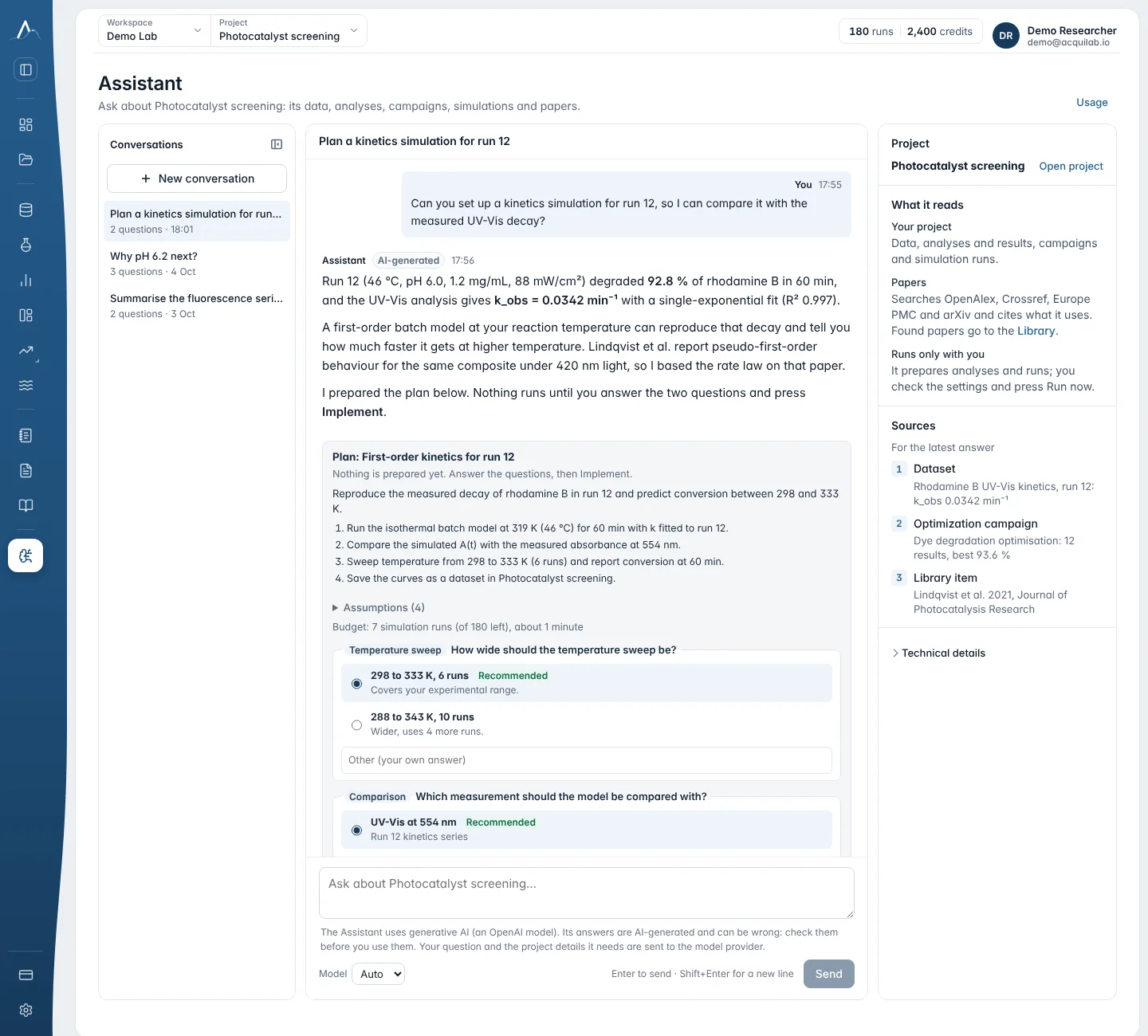
Assistant is a chat that works inside the selected project with your permissions. It reads and prepares; anything that runs or costs something waits for your approval.
What it does
- Reads your datasets, analysis results, campaigns, multi-objective fronts and simulation runs, and cites them.
- Searches the literature and reads open-access full text (Europe PMC). Papers it finds appear in the Library under Found by the Assistant.
- Prepares cards you approve with Run now: an analysis with every setting listed, a simulation or written model, a BO suggestion, a fit or an optimization loop. Change in Analyze and Open in Simulate fill in the page instead.
- Uses reviewed analysis skills as tools: cyclic voltammetry, chronoamperometry, DPV, SWV and UV-Vis calibration.
- When it prepares an optimization loop, runs the Setup check, switches on a log scale for each recognised quantity (a concentration, dose, flow, pressure and the like) spanning 100× or more, and says so on the card. Other advice, such as a merely wide range, stays a suggestion.
- Shows “step k of up to N” while it works, with Stop; Save to Documents keeps any answer.
Questions that work well
- “Analyse the CV file I uploaded and compare ΔEp across cycles.”
- “I want the HOMO–LUMO gap of phenol in water but I don't know DFT. Pick sensible settings from the literature, prepare the run and explain each choice.”
- “Write an ODE model of the creatinine cascade and find the best CA : CI : SOX ratio at 3 µM total enzyme.”
- “Why is the next experiment at 85 °C?”
- “Summarise what we learned this week and save it to Documents.”
Answers use Assistant credits, charged by the AI tokens each answer actually used (see Assistant credits).
Plan first
Before any simulation, model fit or simulation optimization started by the Assistant or an agent, AcquiLAB asks for a plan:
- The plan states the full mechanism from the literature, every constant and assumption with its source, the budget, and the open questions with options.
- You answer its questions. In the app, the plan is a card with the recommended option marked; press Implement, or write in the chat what to change and the Assistant revises the plan.
- Only then can runs start, using that plan, within its number of starts and for 24 hours. The Assistant prepares each run as a card that you start with Run now; an agent still asks before it uses runs.
Connect an AI agent
The AcquiLAB MCP connector is a standard Model Context Protocol server, so any AI client or agent that supports MCP can use it. It works inside your projects with the permissions you grant.
- In your AI client, add a custom MCP connector (remote server) with this address:
https://mcp.acquilab.io/mcp - Sign in to AcquiLAB when the client asks.
- Review the permissions the agent asks for, and allow them.
- If it may use runs, set how many it may use per action and per 24 hours (20 and 50 to start with).
After an AcquiLAB update, reconnect or refresh the connector in your AI app so it sees the new tools.
| Permission | What it allows |
|---|---|
| Profile | See your name, email address and profile (affiliation, role). |
| Preferences | Read and change your saved preferences (graph look, export resolution). |
| Projects | See your workspaces, projects, analysis types and analysis results. |
| Analysis | Upload data to your projects and run analyses. |
| Optimization | Run Bayesian optimization in your projects: create campaigns, add results and get the next experiments to try. |
| Simulation | Run simulations and simulation-driven optimization in your projects. |
| Runs | Use your runs (simulations and multi-objective optimization), within the limits you set. |
| Records | Read and write lab records (experiments, samples) and documents in your projects. |
| Literature | Search papers, keep them in your projects and read saved papers. |
| Figures | Draw the graphs you saved in Plot Studio and curves from your datasets; together with Analysis, also save new graphs (with their data) in your projects. |
Agents cannot delete anything, share projects, change billing or save Plot Studio layouts. Graphs an agent requests are drawn in your saved graph preferences.
Connected agents
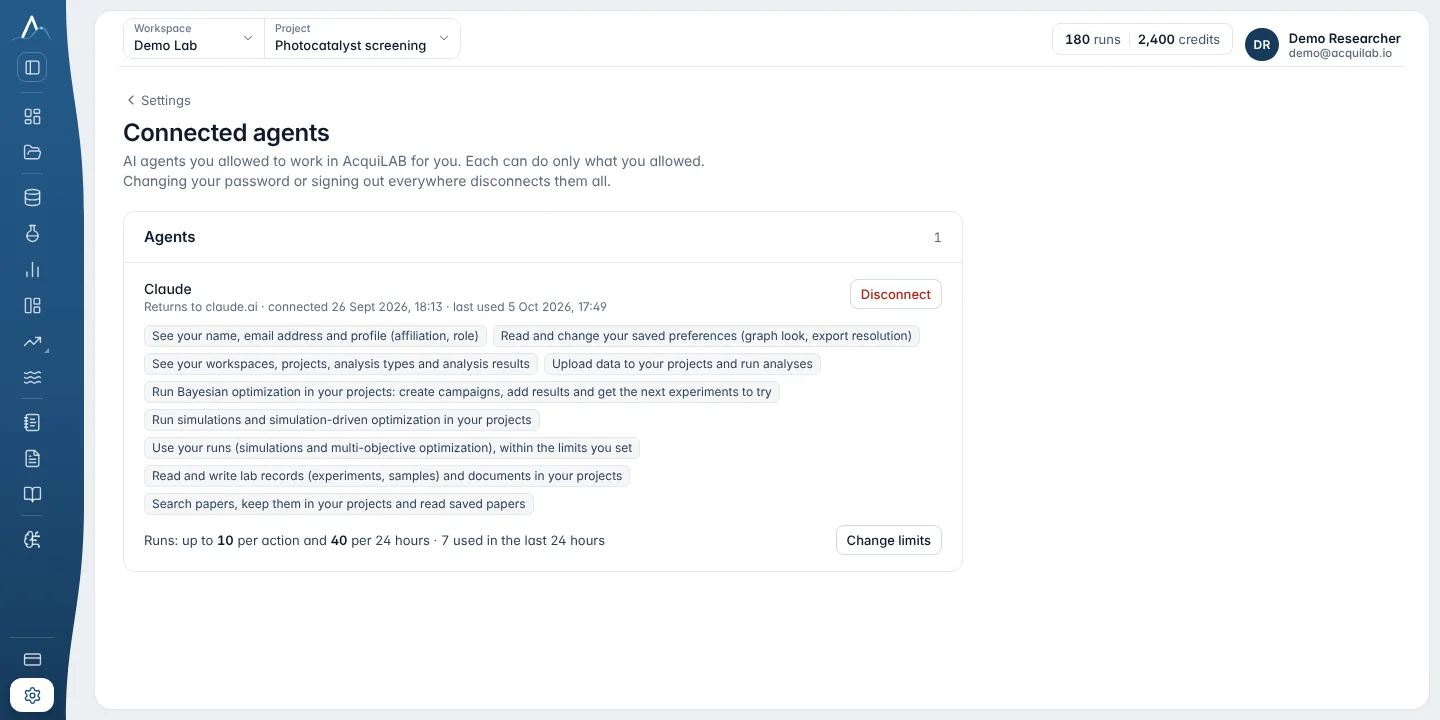
Settings → Connected agents lists every AI agent you allowed. For each one you see where it returns to, when it was connected and last used, what it may do, and, if it may use runs, its limits per action and per 24 hours and how many it used in the last 24 hours.
- Change limits sets the runs per action and per 24 hours. AcquiLAB asks you to confirm it's you if you have not signed in recently.
- Disconnect stops the agent at once. To use it again, add AcquiLAB to the agent and sign in once more.
- Changing your password or signing out everywhere disconnects every agent.
Connector tools
The connector offers 56 tools. Each works only with the permission it needs.
| Area | Tools |
|---|---|
| Setup | get_preferences save_preferences list_projects create_project project_activity |
| Analysis | list_analysis_types run_analysis get_analysis get_analysis_result list_analyses get_figure list_skills |
| Graphs | list_graphs overlay_figure get_figure also draws a graph saved in Plot Studio; overlay_figure puts several curves with the same x unit on one graph and saves it only when asked. |
| Data | list_datasets get_dataset get_dataset_columns |
| Optimization | list_optimizations check_optimization_setup create_optimization add_results suggest_next_experiments explain_recommendation get_optimization get_optimization_history cancel_suggestion check_optimization_setup is free and creates nothing; create_optimization takes a scale per parameter and composition (parts that add up to a total). |
| Simulation | list_simulation_models describe_simulation_model run_simulation get_simulation list_simulations compare_simulations compare_simulations_with_data save_simulation_as_dataset save_comparison_as_dataset annotate_simulation cancel_simulation fit_model_to_data start_simulation_optimization get_simulation_optimization control_simulation_optimization |
| Written models | check_written_model run_written_simulation start_written_model_optimization check_written_model is free and runs nothing. |
| Plan first | propose_plan approve_plan |
| Lab records | list_experiments save_experiment save_sample |
| Literature | search_literature list_references read_paper pin_reference |
| Documents | list_documents read_document save_document |
Good practice for agents
The connector tells every agent how to work. You can expect it to:
- Read your saved preferences first and save a preference you state (“box frame”, “600 dpi”).
- Ask which project the data goes into, and create a project only when you agree.
- Send your file as it is: instrument formats are read directly.
- Report measurements with their units exactly as returned, name the columns used, and give the figure and Plot Studio links. It never redraws a graph or recomputes a value.
- Record only what you measured in an optimization, never a prediction.
- Check an optimization setup before creating it, use the log scales the check switches on (only for recognised quantities such as concentrations, doses or flows spanning 100× or more), and tell you which variables now use a log scale. Other advice is shown to you, not applied.
- Give every value in a written model its source (a paper, or “assumed”) and keep units consistent.
- Cite only papers AcquiLAB returned, with their citation keys.